
JaMeet Support
How can we help?
Answers to the questions beta testers ask most.
Common questions
Getting started
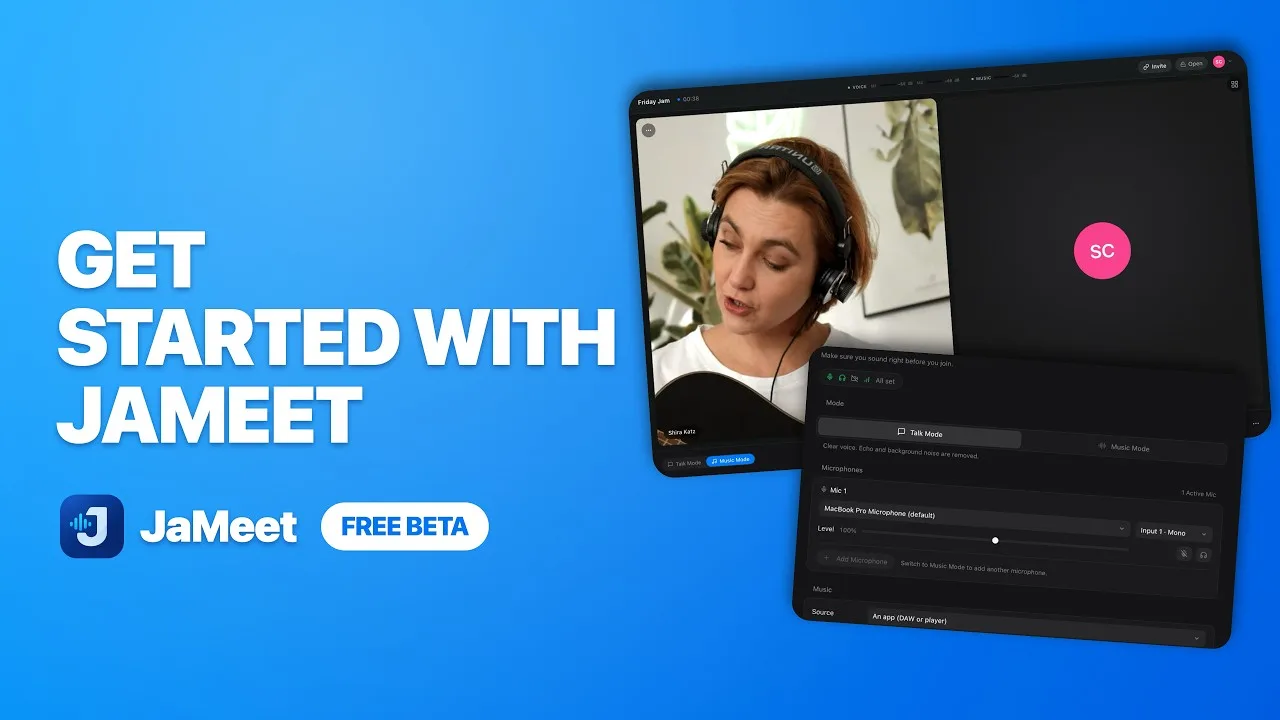
The video plays from YouTube once you press play.
How do I start or join a session?
Once your email is verified, sign in and click New Session. Studio Sound Check opens first: name the session, check your devices, and copy the invite link or send the eight-character code. Up to four of you can be in a session, and everyone needs an approved beta account. Others can join from the app or a browser, but only the desktop app can start a session.
Can I send the invite link before the session starts?
Yes. JaMeet holds a code for you for 30 minutes while you set up, so the link you copy in Sound Check is the one people will join. Anyone who opens it early sees that you have not started yet, and the button waits for you.
Can someone join without installing JaMeet?
Yes, from a browser on a computer. They open your invite link, choose Join in this browser and sign in with an approved account. They get the call itself: voice in Talk or Music Mode, camera, screen sharing, chat and the Studio Mixer. A browser cannot start a session, and Projects, Settings, Music sources such as your DAW, JaMeet Remote and remote control need the desktop app. So far it is tested in Chrome.
Do I need an account?
Yes, even to join from a browser. Create an account on this website or in JaMeet, then verify your email. Your beta access starts as soon as your email is verified.
Should I use headphones?
Yes. Music Mode turns off echo cancellation to protect instrument dynamics, so open speakers will feed back into your collaborator’s mix. JaMeet warns you if it can see that your output is a speaker.
Audio and devices
My audio interface is missing from the list
Confirm the device is visible and selected in your operating system’s audio settings, and that no other application has it exclusively locked.
Why can’t the other person hear my music?
Check that your Music Input is set to the right source: the application playing audio, your audio interface output, or your computer’s system audio. Capturing an application needs macOS 14.2 or later, or Windows 11.
Is Music Mode lossless?
Your Music source is, between desktop apps. The default Music Quality Target, Lossless, sends it as uncompressed 24-bit stereo at 48 kHz, in sessions of up to four. It needs about 2.3 Mbit/s for each person you send to, and a connection that cannot carry that switches to Opus by itself. Browser guests always receive the Music as Opus, and your voice is always Opus, which is high quality but not lossless.
What does each path actually send?
Your voice goes out compressed, in mono while you are talking and in stereo in Music Mode. The separate Music path carries your instrument or DAW in stereo, at whatever you set as the Music Quality Target: uncompressed 24-bit by default, or one of a ladder of compressed Opus settings. Opus also carries the Music to anyone who cannot receive 24-bit. The Low CPU performance profile holds that Opus rate lower.
What can the Studio Mixer do?
It gives every microphone, your Music source and each remote musician a channel with level, pan, mute and solo, plus FX slots holding a seven-band EQ, a compressor, a delay and a reverb. Input and output routing are set from the mixer, each effect opens in its own movable window, and the whole desk can float in a window of its own or be minimised out of the way.
What are the delay and reverb?
Two insert effects that sit beside the EQ and compressor on any channel. Delay has time, feedback, mix and low and high cut inside its feedback loop; reverb has decay, pre-delay, mix and the same filters. Both are dry/wet, so bypassing one adds no latency to the dry signal.
Why does my input channel selection stop working in Talk Mode?
Talk Mode always runs echo cancellation, noise suppression and gain control. That processing takes the whole device and hands back one processed channel, so a selected physical input is not in effect and every input on the interface is summed into it. Switch to Music Mode to capture the chosen input on its own, unprocessed. Adding a second microphone is a Music Mode feature for the same reason.
Do I need BlackHole, Loopback or a similar tool?
Not for the supported paths. JaMeet captures an application, your interface output or system audio natively. If you already use a virtual device, it works as a normal Music Input.
Can I record my collaborator into my DAW?
On macOS the installer adds the JaMeet Remote audio device, which your DAW sees as an input. It carries one collaborator’s voice at a time, even in a larger session, and it is not part of the Windows beta yet.
Permissions and sharing
Which permissions does JaMeet ask for?
Microphone and camera on first use, and screen recording the first time you share. On macOS 14.2 or later, capturing application or system audio asks once more, and letting someone control your screen needs Accessibility. The macOS installer also needs an administrator password and a restart to add its audio device.
Why can’t JaMeet see my microphone or camera?
Grant microphone and camera permission, then reopen Studio Sound Check, which shows the status of both and can open the right privacy pane for you. On macOS, check System Settings › Privacy & Security if you dismissed a prompt. On Windows, check Settings › Privacy & security.
How do I share my DAW?
Open the share dialog and pick your DAW from the application list rather than a whole display, then choose the option that keeps timelines and text crisp. It captures up to 4K. Your microphone stays live, and a floating toolbar keeps the controls to hand. Screen sharing is video only; select your DAW audio separately as your Music input.
How does letting someone control my screen work?
While you are sharing, a collaborator can press Request control. You choose Allow or Deny, and nothing moves on your machine until you allow it. A grant covers one person and that one share, and either of you can end it at any time. JaMeet sends real key presses rather than text, so DAW shortcuts work, and its own windows cannot be operated this way.
Control stopped working for a moment on Windows
Windows blocks synthetic input while an administrator prompt or another elevated window is in front, and JaMeet does not work around that. Control pauses, you are told, and it resumes once that screen is gone.
Will my collaborators see the JaMeet window in my share?
They should not. JaMeet excludes its own windows from its own share for as long as the share lasts, the floating mixer and video included. On macOS, a display share that cannot exclude JaMeet is refused rather than sent anyway. We have not yet checked this from a second computer, so tell us if you ever see a JaMeet window in a share.
My screen share is blank on macOS
Enable JaMeet under System Settings › Privacy & Security › Screen & System Audio Recording, then restart JaMeet.
Calls and connection
How many people can join a session?
Up to four, including you. Everyone gets their own camera tile, screen-share tile and Studio Mixer channels, and 24-bit Music works at every size between desktop apps. Four-way sessions are not yet tested on four separate computers. The JaMeet Remote audio device carries one collaborator’s voice at a time.
Can I make people wait before they join?
Yes. Turn on “Ask before people join” in Sound Check and each arrival waits until you let them in. Leave it off and anyone with the link or code joins straight away.
Can I change the camera and screen quality?
Yes. Settings › Video offers Auto or a fixed camera target from 360p to 4K. Auto sends 1080p, and a chosen target is sent as chosen, unless the Low CPU performance profile is on, which holds the camera to 360p. Screen sharing is budgeted separately and captures up to 4K.
The call works on one network but not another
Some networks block direct connections, and JaMeet falls back to relay servers automatically. Settings › General has a connection test that measures round trips and packet loss without uploading anything, and recommends a music quality from the result. If a session still fails, try another network or a wired connection, and send feedback from inside the app.
Does JaMeet record the session?
No. There is no call recording or video export. The short microphone test in Studio Sound Check stays in memory for local playback and is never uploaded or saved.
Projects and songs
How do I add someone to a project?
Open the project’s Members tab and add them by their exact username or email. They get an invitation on their Home and choose Join or Decline, so adding someone does not put them in the project. You can also create an invite link, up to ten active for seven days and 25 uses each, or show its QR code.
Can I get an earlier version of my lyrics back?
Yes. JaMeet keeps the last three versions of each song’s lyrics, notes and structure, and Restore puts one back. Lyrics also have named versions of their own in the title menu.
Where do the rhymes and syllable counts come from?
From a pronunciation dictionary bundled inside the app, filtered by a common-word list, so nothing is looked up online. Double-click a word for rhymes and near rhymes; picking one replaces the word as if you had typed it. It works for English, and falls back to spelling rules for anything else.
Who can see that I am editing?
Everyone in the project, while the session is live: lyrics show each person’s caret, the song header says who is viewing it, and edits appear as they are typed. Notes and structure work the same way.
Account and data
Can I download my data?
Yes. Settings › Account › Your data has Download your data, which gives you one file holding your profile, activity, signed-in devices, session history, scheduled sessions, projects, the chat messages you sent and your project invitations. Files you uploaded are named in it rather than included.
How do I delete my account?
Settings › Account › Your data › Delete Account, confirmed with your username and password. Hand over or delete any project other people are in first. It removes your account, the projects only you were in, your memberships, invitations, scheduled sessions and history; messages you sent in surviving projects stay under the name you sent them with. Email privacy@ja-meet.com if you would rather we did it.
Where can I see the devices I am signed in on?
Settings › Account lists them, and you can sign out of every device except the one you are using.
Can I stop strangers inviting me?
Yes. Settings › Account › Invitations lets you accept invitations from anyone, or only from people you have worked with. It applies to project invitations and scheduled sessions; anyone you send a link to can still use it.
Installing and updating
What is different on Windows?
Calls, Talk and Music modes, device selection, video-only screen sharing with remote control, and projects are included. Send application or system audio through the separate Music input. The JaMeet Remote audio device, which routes your collaborator’s voice into your DAW as an input, is macOS only for now. The Windows installer is also not signed yet, so Windows may show a SmartScreen publisher warning.
Which Macs are supported?
Apple Silicon and Intel Macs on macOS 12 or later, with one installer for both. Sharing your screen needs macOS 13 or later, and capturing application or system audio needs macOS 14.2 or later. Intel support is new since 0.4.2 and has been tried on only one real Intel Mac so far.
The installer shows a warning
On Windows this is expected during the beta because the installer is not signed yet; only continue if you downloaded it from this site. On macOS, do not bypass a warning that the installer cannot be verified. Contact us instead.
How do updates work?
JaMeet checks for updates in the background and offers to install them from inside the app. When a release includes a new macOS audio device, it points you to the full installer instead.
Still need help?
Email support
We’ll get back to you. Reporting from the app, in Settings › General › Report an Issue, adds your version and platform for you.
Delete your account and data
Do it yourself in Settings › Account › Your data. Or email us from your account’s address with the subject “Delete my account” and your username.
Report a security issue
Found a vulnerability? Tell us privately by email, not in public.